Image Recognition
Take or select a photo, and AI automatically recognizes bill information.
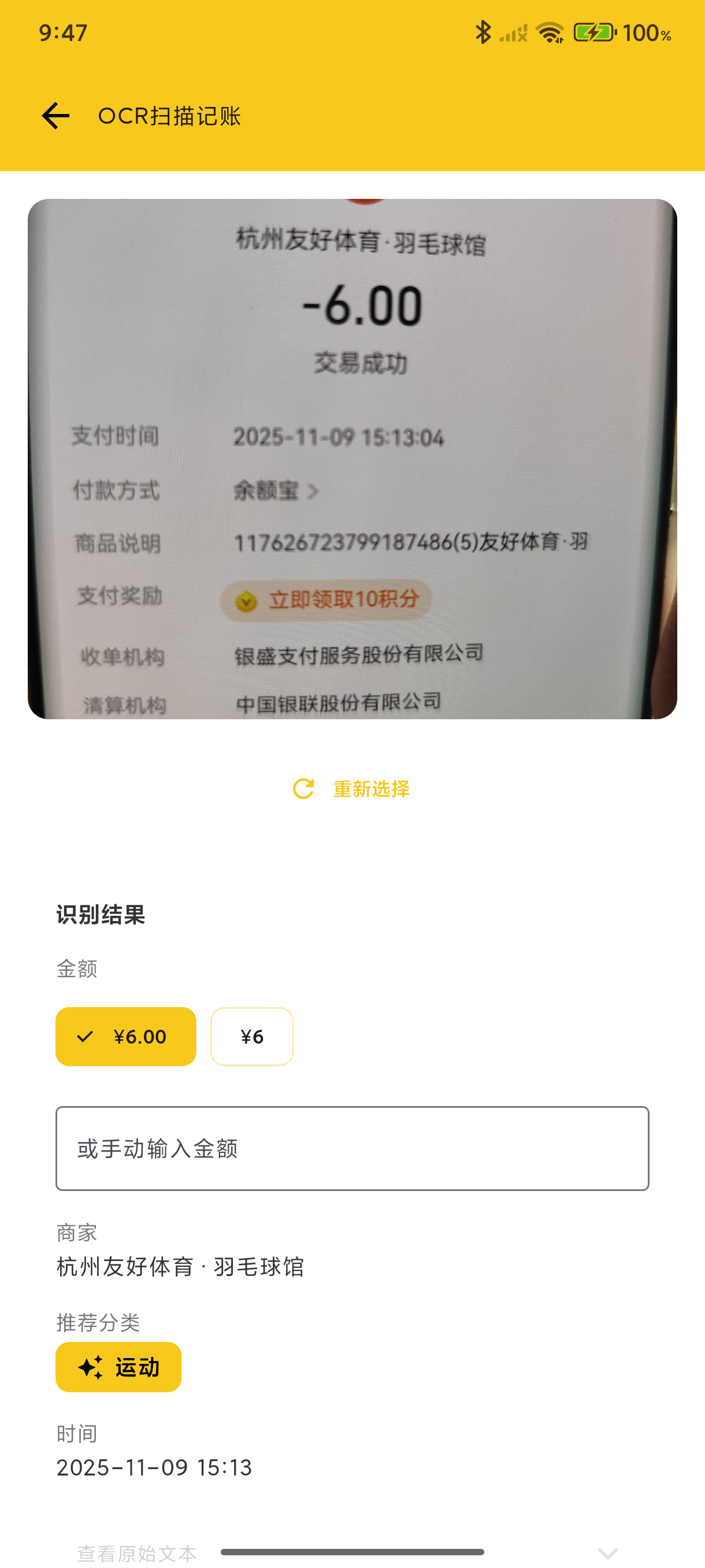
How to Use
- Open the recording page
- Tap the camera icon
- Take a photo or select from gallery
- AI automatically recognizes the bill
- Confirm and save
Supported Scenarios
- Shopping Receipts - Supermarket, mall receipts
- Food Delivery Orders - Uber Eats, DoorDash screenshots
- Transfer Records - Payment app transfer screenshots
- Invoices - Electronic or paper invoices
Recognized Content
AI will attempt to identify:
- Amount
- Merchant name
- Transaction time
- Purchase items
Multiple Transactions per Image
Since 3.2.3, the mobile AI flow supports detecting multiple transactions from a single image (previously only the first was kept). Bill screenshots, supermarket receipts, monthly Alipay / WeChat statements with many rows all yield a draft list of N transactions:
- Confirm / tweak amount, category, account, tags and note per row
- The original image is attached to every one of the N transactions, so the source is reachable from any of them
- Tap "Skip" on any row to drop it — only the rows you want get saved
Tips
- Use clear, legible images
- Include complete amount information
- Avoid glare or shadows
Manual Adjustment
AI recognition may not be 100% accurate. Please verify and adjust manually before saving.
Auto Tag
When using image recording, the system automatically adds an "Image Recording" tag to the transaction for easy filtering and statistics.
Auto-Save Attachment
The image used for recognition is automatically saved as a transaction attachment. You can view the original image in the transaction details.
Web Image Recording
After signing in to BeeCount Cloud on the web, the desktop browser supports direct image paste:
- On any page, press ⌘K / Ctrl+K to open the command palette
- Press ⌘V / Ctrl+V to paste an image (a screenshot in the clipboard, or drag-drop)
- The default action switches to "AI bill (image)" → Enter
- A dialog shows N transaction drafts; edit category / account / tags / note per row
- Click "Save selected" to commit them in one batch
The server uses a vision LLM (Zhipu GLM-4V Flash etc., bind it in AI Config) to parse, and all N transactions share the original image as an attachment. On failure, the LLM raw output is shown for debugging.
Same as mobile, recognized transactions are auto-tagged with "AI" + "Image".